
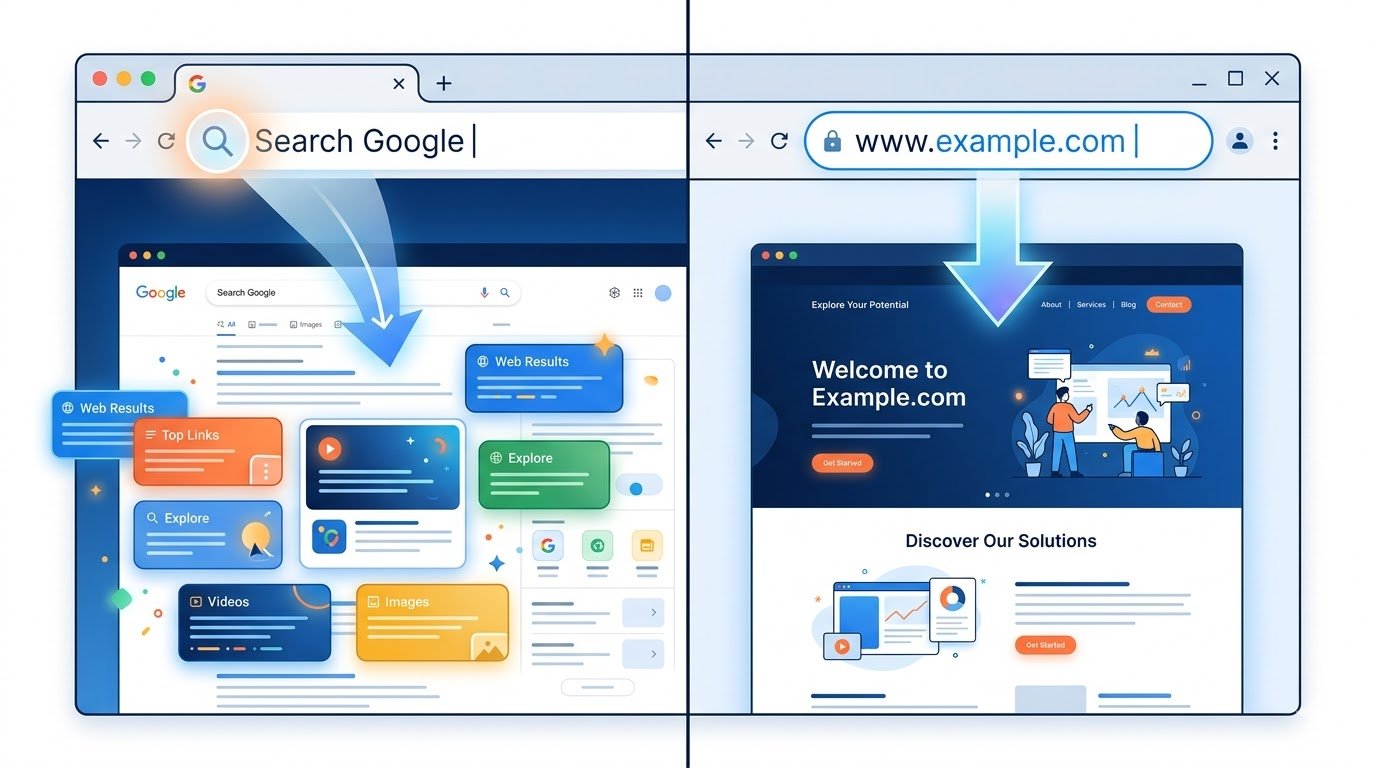
That little white bar at the top of your browser does a lot more than it looks. Here’s what really happens when you type something into it and why it matters.
What Is the Address Bar, Really?
If you’ve ever opened Chrome, Firefox, Safari, or Edge, you’ve seen it: that long, rectangular input field sitting right at the top of the browser window. Most people treat it like a Google search box they type a question, hit Enter, and get results. But it’s actually something a little more nuanced.
Browser developers call it the Omnibox (Google’s term) or the address bar, and it does two separate jobs depending on what you type into it.
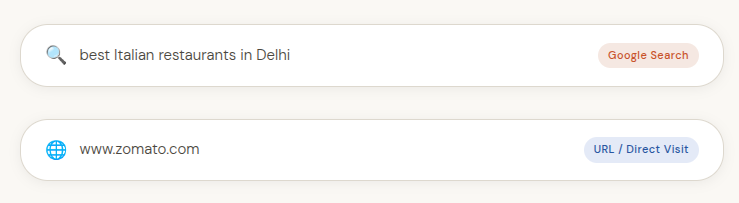
Two inputs, same bar, completely different destinations. In the first example, the browser sends your text to Google (or your default search engine) and brings back a list of results. In the second, it takes you directly to that website no middleman involved.
Understanding the difference isn’t just trivia. It changes how fast you reach your destination, how private your browsing is, and even how much control you have over what you see online.
Searching Google: What It Actually Means
When you type a phrase like “how to fix a leaking tap” or “cheapest flights to Goa” into the address bar and press Enter, your browser recognizes that this isn’t an address it’s a question. It bundles your text into a search query and sends it to Google (or Bing, DuckDuckGo, or whichever engine you’ve set as default).
Google’s servers then comb through billions of indexed web pages, evaluate them for relevance using over 200 ranking signals, and return a Search Engine Results Page commonly called a SERP usually within a fraction of a second.
What shows up on a Google results page?
A typical results page isn’t just a list of blue links anymore. You’ll find ads at the top and bottom, a featured snippet (a quick answer extracted directly from a website), a map pack if you’re searching for a local business, image carousels, video results, and “People Also Ask” accordion questions. Google has spent two decades making search results feel more like answers than doorways which is both helpful and, depending on your perspective, a little concerning for website owners.
When does search make the most sense?
Search is the right tool when you’re exploring, comparing, or don’t know exactly where to go. You use it to discover to cast a wide net and let an algorithm surface options you might not have thought of yourself. It’s the modern equivalent of asking a knowledgeable stranger for a recommendation.
Typing a URL: What It Actually Means
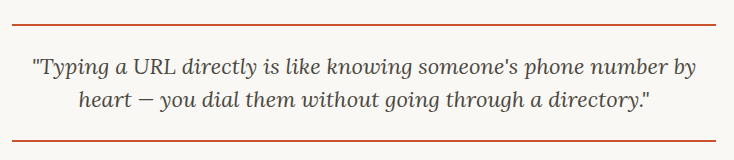
A URL (Uniform Resource Locator) is, put simply, a web address. It’s the precise digital location of a specific page on the internet like a home address, but for websites. When you type a URL directly into the address bar, your browser skips the search engine entirely and takes you straight to that page.
A full URL has several components, though you rarely type all of them out:
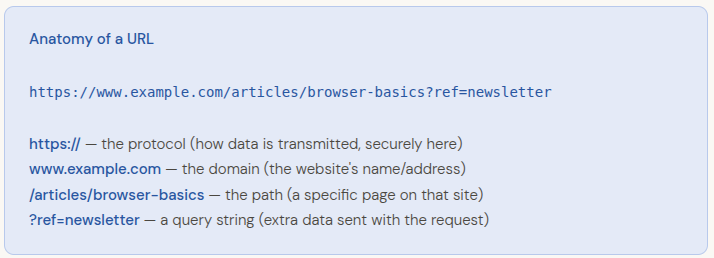
When you type a URL and press Enter, your browser performs a series of steps behind the scenes: it looks up the domain name in a global address book called the DNS (Domain Name System), finds the matching IP address, connects to the web server, and requests the page. All of this typically happens in under a second.
Why type a URL directly?
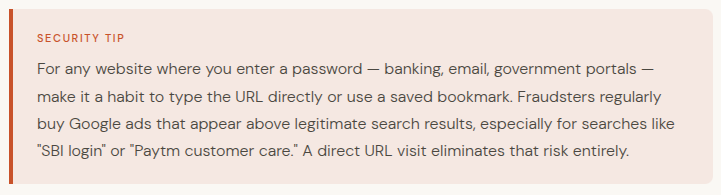
Direct URL entry is faster when you already know where you’re going. It bypasses Google entirely which means no ads, no tracking by a search engine, and no possibility of clicking a fake or phishing result disguised as the site you wanted. Typing www.hdfcbank.com directly into your browser is meaningfully safer than Googling “HDFC bank login” and clicking the first result, which could, in a worst case, be a convincingly designed fake.
Key Differences at a Glance
Here’s how the two approaches compare across the dimensions that matter most to everyday users:
| Aspect | Search Google | Type a URL |
|---|---|---|
| Destination | Google results page (SERP) | Directly to the specific website |
| Best for | Exploring, discovering, comparing | Going somewhere you already know |
| Speed | Slightly slower (search page first) | Faster one direct hop |
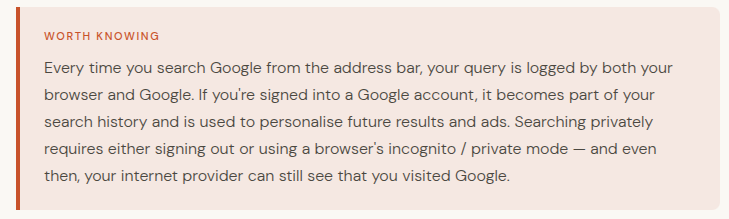
| Data collected | Google logs your query | Only the destination site knows |
| Risk of fraud | Higher fake ads can appear | Lower if you type correctly |
| Requires knowing | Keywords or a question | The exact web address |
| Ads shown? | Yes at the top and bottom | No (unless the website itself shows ads) |
| Works without internet? | No | Only for cached pages |
When to Search vs. When to Type a URL
There’s no rule that says you must use one over the other most people use both dozens of times a day without thinking about it. But developing a slight awareness of which tool fits each situation can make you noticeably more efficient and safer online.
Use Google Search when you…
- Don’t know the exact website you want (e.g., “best budget blender under ₹3,000”)
- Want to compare multiple sources or opinions before deciding
- Are looking for news, tutorials, definitions, or quick facts
- Need to find a business, place, or service near you
- Are researching a topic with no particular destination in mind
Type a URL directly when you…
- Know exactly where you’re going (e.g., your bank, your email, a social media platform)
- Want to avoid being shown paid ads for the thing you’re trying to reach
- Are logging into a financial or sensitive account and want to avoid phishing risks
- Want to share or bookmark a specific page knowing its URL is essential
- Are a developer or designer who needs to access a specific file path on a server
Pro Tips for Smarter Browsing
Beyond simply knowing the difference, there are a handful of habits that can genuinely improve your day-to-day browsing experience.
Use bookmarks like a contact list
If you visit a site more than a few times a week, bookmark it. Bookmarks are the digital equivalent of saving someone’s number you stop relying on memory or search engines to find your way back. Most browsers sync bookmarks across your devices automatically when you’re signed into your browser account.
Learn keyboard shortcuts
On any computer, pressing Ctrl + L (or Cmd + L on Mac) jumps your cursor directly to the address bar without touching the mouse. It’s one of those tiny habits that quietly saves you minutes every day.
Check the URL before you click
Hovering over any link shows you its destination in the bottom-left corner of your browser. A link that claims to take you to “Amazon” but shows a URL like amaz0n-deals.ru in the corner is a red flag. Get in the habit of glancing at where you’re actually being sent before clicking.
Understand “https” vs “http”
The small padlock icon in your address bar and the https:// prefix both indicate that your connection to that website is encrypted. Never enter personal information a password, your phone number, payment details on a site that shows http:// without the “s.” It’s not necessarily a malicious site, but it’s an insecure one.
Use search shortcuts
Most browsers let you set up search shortcuts so you can search specific sites directly from the address bar. For example, typing yt cats can take you directly to a YouTube search for “cats” without ever visiting YouTube’s homepage first. Check your browser’s search engine settings to set these up.
Frequently Asked Questions
Is the address bar the same as the search bar?
Not technically, but modern browsers have merged the two into a single input field. Older browsers had a separate search box (usually with a small search icon) beside the address bar. Today, the address bar handles both functions it figures out from what you type whether you’re searching or navigating.
What happens if I type a URL incorrectly?
If the address doesn’t match any website, you’ll typically see either an error page (“This site can’t be reached”) or, in some cases, your browser will treat your typo as a search query and show you Google results instead. Some common typos — like googel.com — have been registered by other parties and may redirect you somewhere unexpected, which is another reason to type carefully.
Can Google see me even when I’m typing a URL directly?
If Google Chrome is your browser and you’re signed into a Google account, there’s a feature called “URL Prediction” that sends partial keystrokes to Google to suggest completions as you type. You can turn this off in Chrome’s privacy settings. Firefox, Safari, and Brave have similar features, each with their own opt-out options.
Does it matter which search engine I use?
Yes and quite a bit, depending on your priorities. Google returns the most comprehensive results for most queries. Bing offers similar results with Microsoft’s ecosystem. DuckDuckGo and Brave Search prioritize privacy and don’t build a profile of your searches. Ecosia plants trees with its ad revenue. They all use the same general concept, just with different data, algorithms, and business models behind them.
What is a “default search engine”?
When you type a query (rather than a URL) into your address bar, your browser sends it to your default search engine. For most people, this defaults to Google, but you can change it in your browser settings to Bing, DuckDuckGo, Yahoo, or others. Some browsers notably Firefox and Brave make privacy-focused engines their default choice.
Are there any URLs I should never type?
Avoid typing URLs from suspicious emails or messages even if they look legitimate. A URL like paypa1.com (with the number 1 instead of a letter l) could be a phishing site designed to steal your login. When in doubt, go to the official website by searching for the company name on Google and clicking the verified result or by typing the well-known domain you trust.
The Bottom Line
The address bar is one of the most-used parts of any computer and most of us interact with it dozens of times a day without pausing to think about what it’s actually doing. Knowing the difference between a search query and a URL is a small piece of digital literacy, but it’s one of those things that pays quiet dividends every time you sit down at a browser.
Search when you’re exploring. Type when you know. Bookmark what you use often. Check the padlock when you’re entering something important. None of this is difficult it just requires a moment of awareness that, over time, becomes second nature.
Must Read-: ION Digital Zone IDZ 2 Mathura Road Complete Travel and Location Guide
