

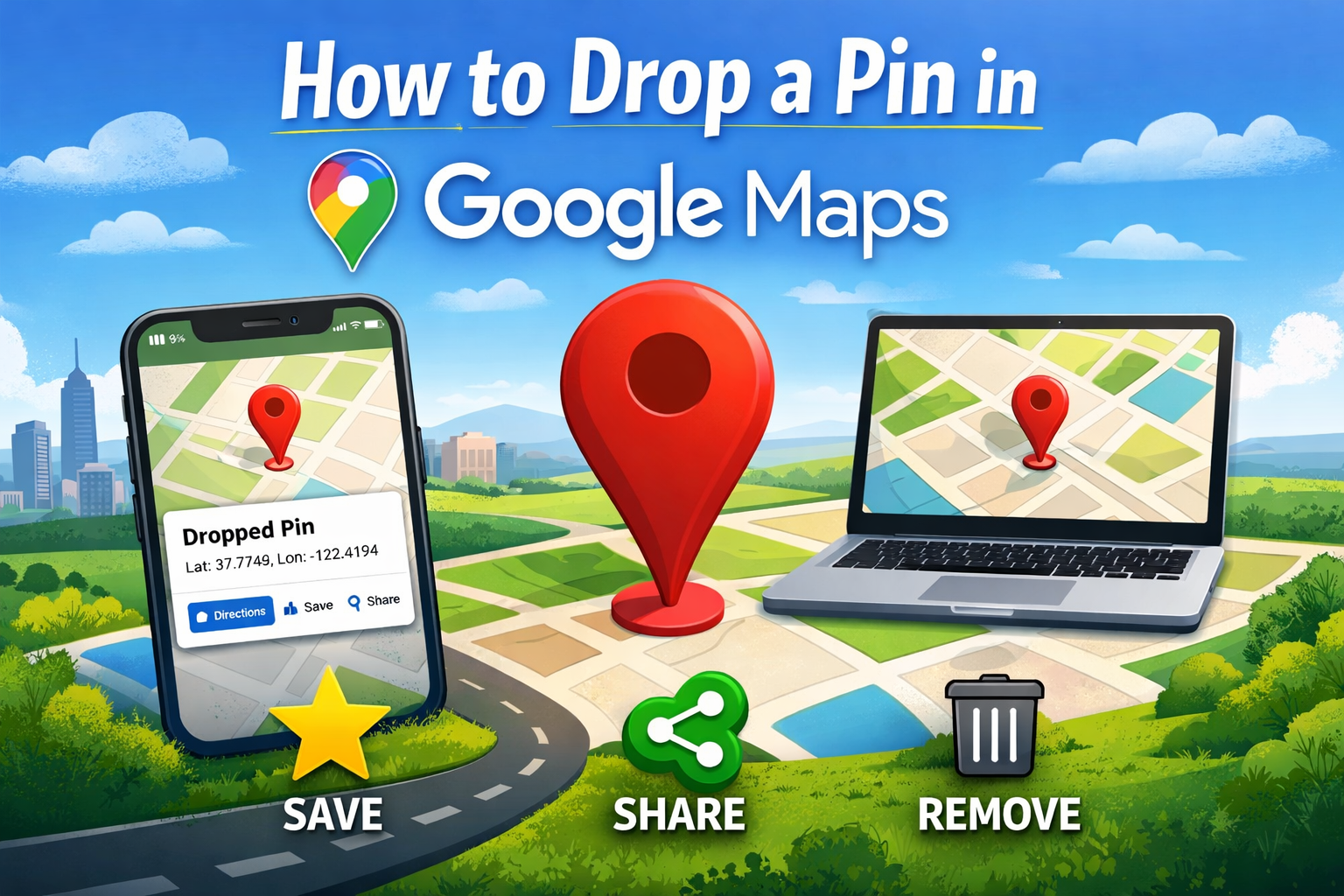
In our ever more mobile world, having an exact sense of where you’re going or helping someone else find a specific point on the map is priceless. This is where Google Maps’ dropped pin feature comes in handy. Whether you’re rendezvousing with friends at a sprawling park, retracing your way back to an obscure trail head or trying to share the exact location of your parked car, dropping a pin gives you precise coordinates on a map that aren’t dependent on the address of the nearest street corner or prominent building.
In this complete guide we’ll go over what a dropped pin is and how to do it on mobile and desktop, as well as how to manage, share and delete them in no time all explained in straightforward terms that are easy to understand.
What Is a Dropped Pin and Why Would You Use It?
A dropped pin is a marker you place at a specific point on Google Maps, indicating general GPS coordinates or just an area you want to remember in the future but not necessarily somewhere that has a traditional address. This is particularly useful for:
- Places with no official address (nature spots or trails).
- Comparing exact meeting points with friends.
- Saving spots that you would like to return to later.
- Receiving accurate guidance from anywhere.
The pin is shown as a red (mobile) or colored marker and remains on the map until removed or replaced.
How to Pin in Google Maps on Mobile
Dropping a pin on the map in your phone (either Google-based or an iPhone) is fast and easy:
1. Open Google Maps App
Open up Google Maps on your phone and head to the location where you’d like to drop the pin.
2. Find the Exact Spot
Pan and zoom the map until you find the location you want to mark.
3. Long-Press to Drop the Pin
Tap and hold the spot on the map. You will see a red pin mark that spot, and a small info box will pop up providing coordinates or an address.
4. Interact With the Pin
Once the pin is dropped:
- Tap Directions to navigate there.
- Tap Save to keep it in your lists like Favorites or Want-to-Go.
- Or press Share to send the location as a text, email or over social apps.
Tip: Dropping a pin does not automatically save it you must manually save to keep the pin forever.
How to Drop a Pin on Google Maps From Desktop (Windows or Mac)
In a desktop web browser, you can also drop a pin when using Google Maps in the same way:
1. Open Google Maps
Visit the Google Maps site and sign in using your Google account (recommended to save pins).
2. Navigate to the Area
Enter a location in the search box or scroll and drag around the map until you find the location you want to place your pin.
3. Click to Drop the Pin
- Manually: Click on the place where you want the pin. There will first be a little marker, then there will be a red one and info panel.
- Method: Enter an address or name into the search bar and select it Google Maps will drop the pin for you.
4. Use the Pin’s Options
Once the drop pin shows up, you can:
- Save it to your Maps lists.
- Share it via link.
- Get directions to/from that location.
Dropped Pin: How to Save, Label and Share One
After you have dropped a pin in either the mobile or desktop version, you can make it more useful:
Saving a Dropped Pin
To pin a pin for later:
- Tap or click the pin.
- Choose Save.
- Choose or create a list such as Favorites or Starred Places.
- Label: You can also give it a custom name or label for identification purposes at a later time.
Sharing a Dropped Pin
You’ll be able to share the pin with others:
- Open the pin’s info box.
- Tap or click Share.
- Pick how you’d like to send it (message, email, social app, etc).
Great for giving friends your exact location or where you would like to meet them.
How to Remove a Dropped Pin
When you don’t want to use the marker any more:
On Mobile
Tap X in the search bar the pin will disappear.
On Desktop
Click on any other area of the map or close the info panel and the pin will disappear.
Note: If you saved the pin to a board, it will continue to exist on that list until you remove it from your Saved section.
Tips and Best Practices
Please see more tips to get the most out of dropped pin feature.
- Accuracy: Zoom in as close as you can before pinning something to achieve the best accuracy – particularly in areas with no discernible landmarks.
- Save Spots: Save favorite or important locations (like parking lots or meet-up spots) to access quickly later.
- More than one Pin: Google’s standard Maps program only allows you to drop a single pin when you search for an address. If you need multiple pins, use My Maps (a feature in the full version of Google Maps).
Conclusion
The dropped pin feature on Google Maps is a simple, helpful way to mark and save a location or to share it with others, particularly in cities and regions where traditional addresses don’t function as well. Whether you want to find a hidden spot, send a meeting location to friends or venture forth knowing exactly where you are and which direction to head in, knowing how to drop a pin gives you control of your mapping experience.
The user journey, from mobile to desktop browsers, is streamlined and bespoke for everyday users. pins, you’ll wonder how you ever lived without them!
FAQs
What does a pin drop mean on Google Maps?
A dropped pin on Google Maps is a marker you can place on the map to point out a specific location. It’s particularly handy when a location doesn’t have an obvious address or when you want to pin down a very specific spot, like a meeting place exact parking spot or middle of nowhere.
How do you do a pin drop on Google Maps on your phone?
To pin a location on Google Maps with your phone:
- Open the Google Maps app
- Zoom to where you want to be.
- Long-press on the exact spot
A red dropped pin will now show, with the location info appearing at the bottom of the screen.
How can I drop a pin on Google Maps from my desktop?
On a desktop or laptop:
- Open Google Maps in the browser of your choice
- Navigate to the location
- Left-click on the exact spot
Google Maps will drop a pin at the location and (so long as you have service) bring up an information panel.
Can you save a dropped pin on Google Maps?
Yes, you can save a dropped pin! After dropping the pin, tap or click Save and add it to a list like Favorites, Starred places or one of your own lists. Pins that you have saved can be accessed any time from your Google account.
How can I send someone a dropped pin?
To share a dropped pin:
- Tap or click the pin
- Select Share
- Select an app such as WhatsApp, email or copy the link
This gives to others the precise pinned location on Google Maps.
How to get rid of dropped pin?
- On mobile: Tap the X in the search bar or tap another location on the map
- On desktop: Tap anywhere else on the map
If saved, you will need to delete it from Saved places.
Is it possible to pin multiple locations at once in Google Maps?
Google Maps only gives you the option for one pin anywhere on the entire map. Short of that, you can save multiple locations or use Google My Maps if you are looking to generate and manage many pins on a map at once.
Must Read-: Rajkot Updates News: When Will the Tesla Phone Be Released? Latest Leaks, Expected Launch & Features
